Finding Writing Guidelines
This guide covers formatting conventions for finding content in Dossier's markdown editor.
Markdown Editor
Findings are written using Dossier's built-in markdown editor, which supports standard markdown syntax plus Handlebars placeholders for dynamic content.
View Modes
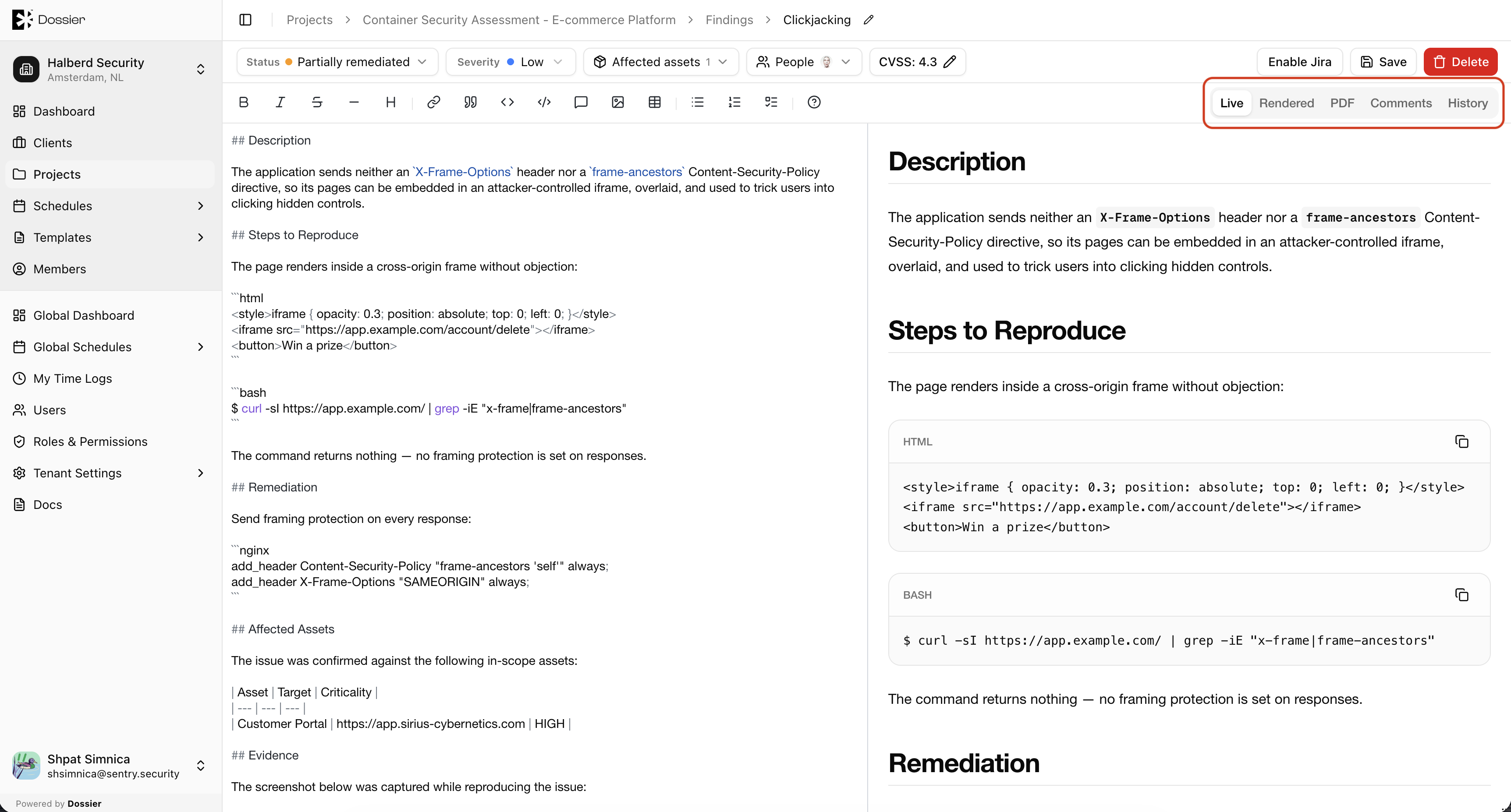
| Mode | Use for |
|---|---|
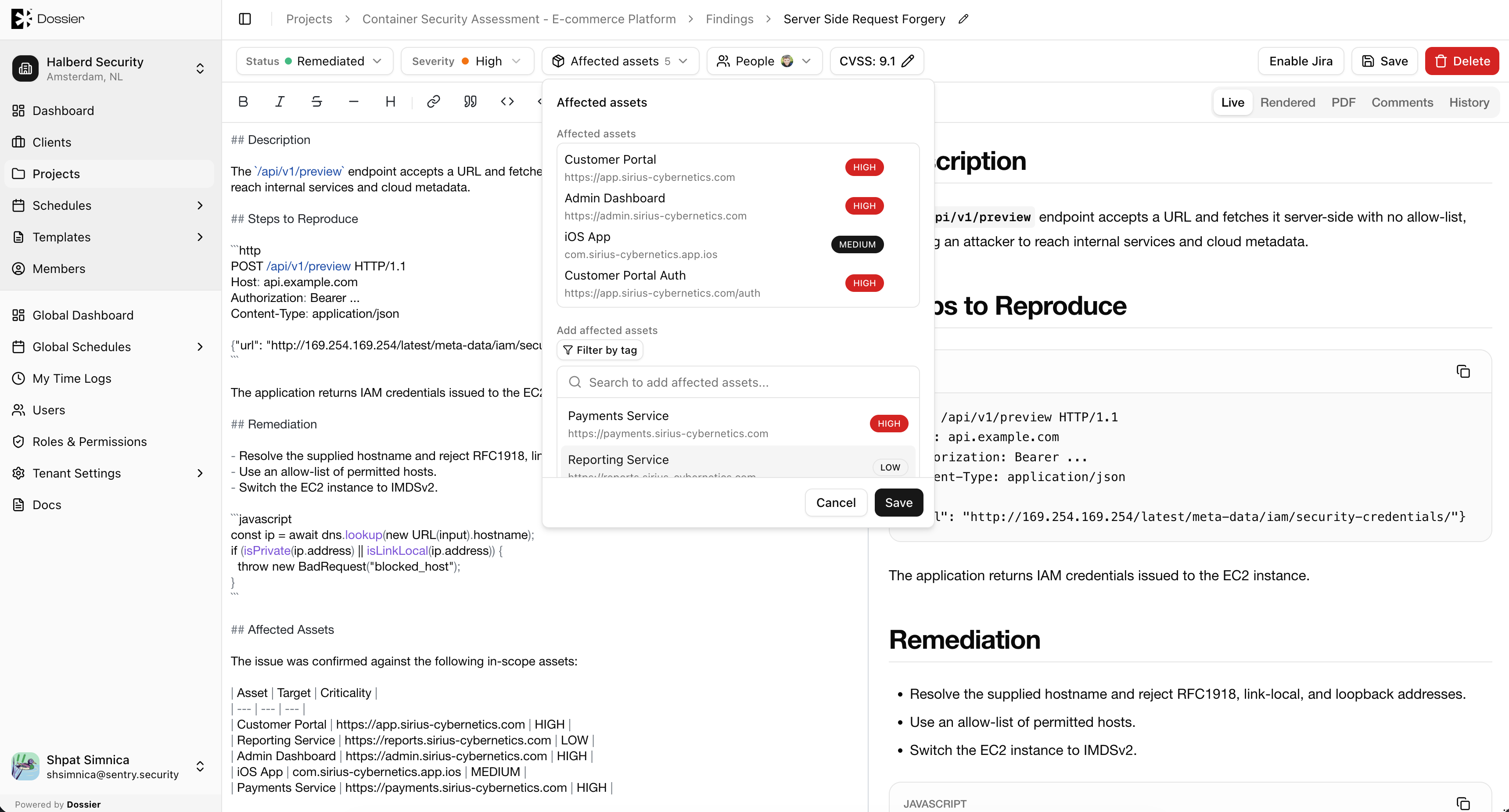
| Live | Writing and editing with real-time preview |
| Rendered | Reviewing the final rendered output |
| Checking how the finding will appear in a generated PDF |
Handlebars Placeholders
Finding content supports Handlebars template syntax. Placeholders are replaced with live project and finding data when the content is rendered or exported to PDF.
Common placeholders include project title, client name, finding severity, and asset lists. Placeholders use double curly braces: {{project.title}}.
Handlebars placeholders are compiled at read time. The raw template syntax is visible in Live mode but replaced in Rendered and PDF modes.
Code Formatting
Wrap inline code in backticks:
`this is inline code`
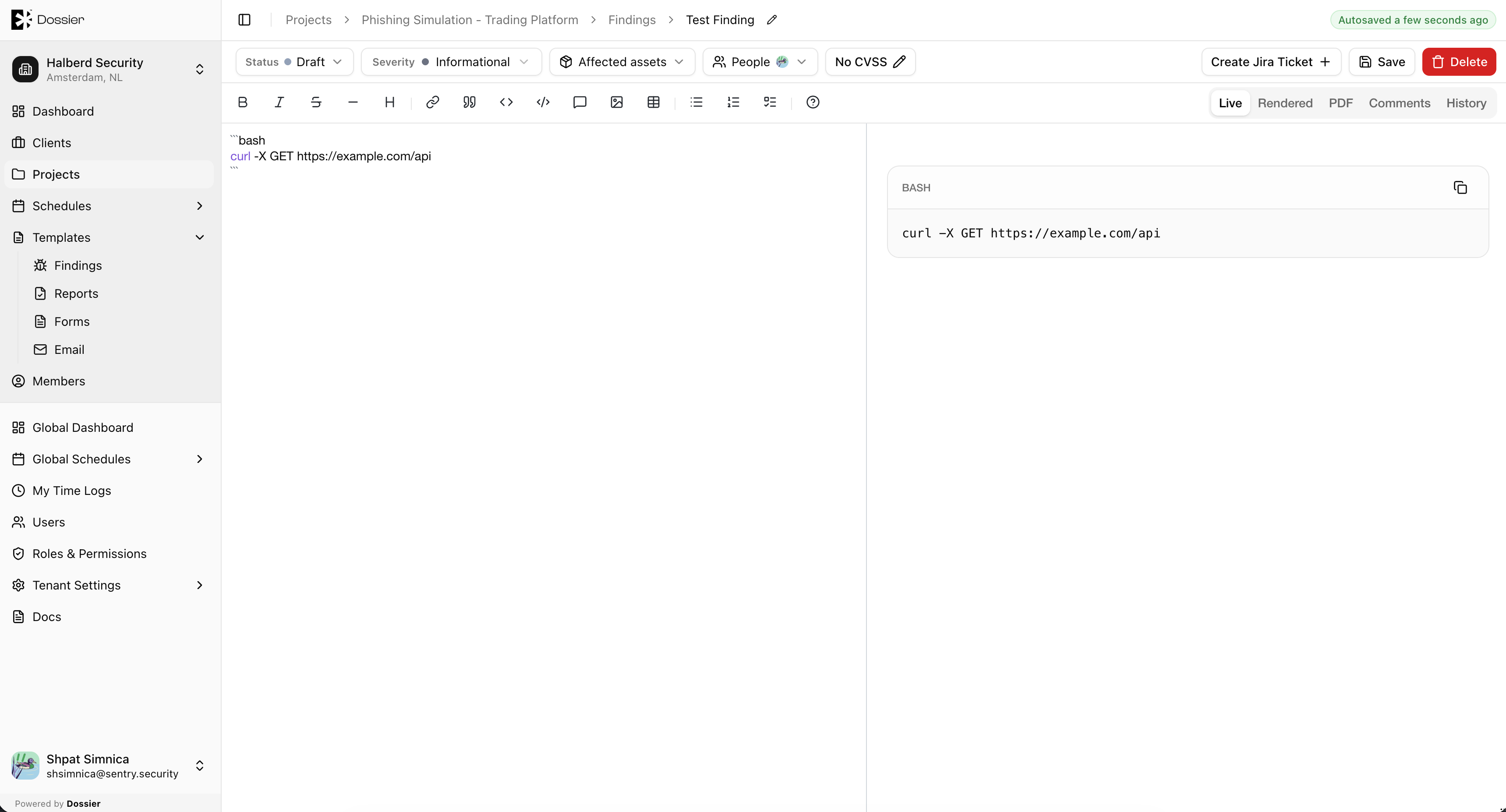
Use fenced code blocks for multi-line code:
```bash
curl -X GET https://example.com/api
```
Images and Captions
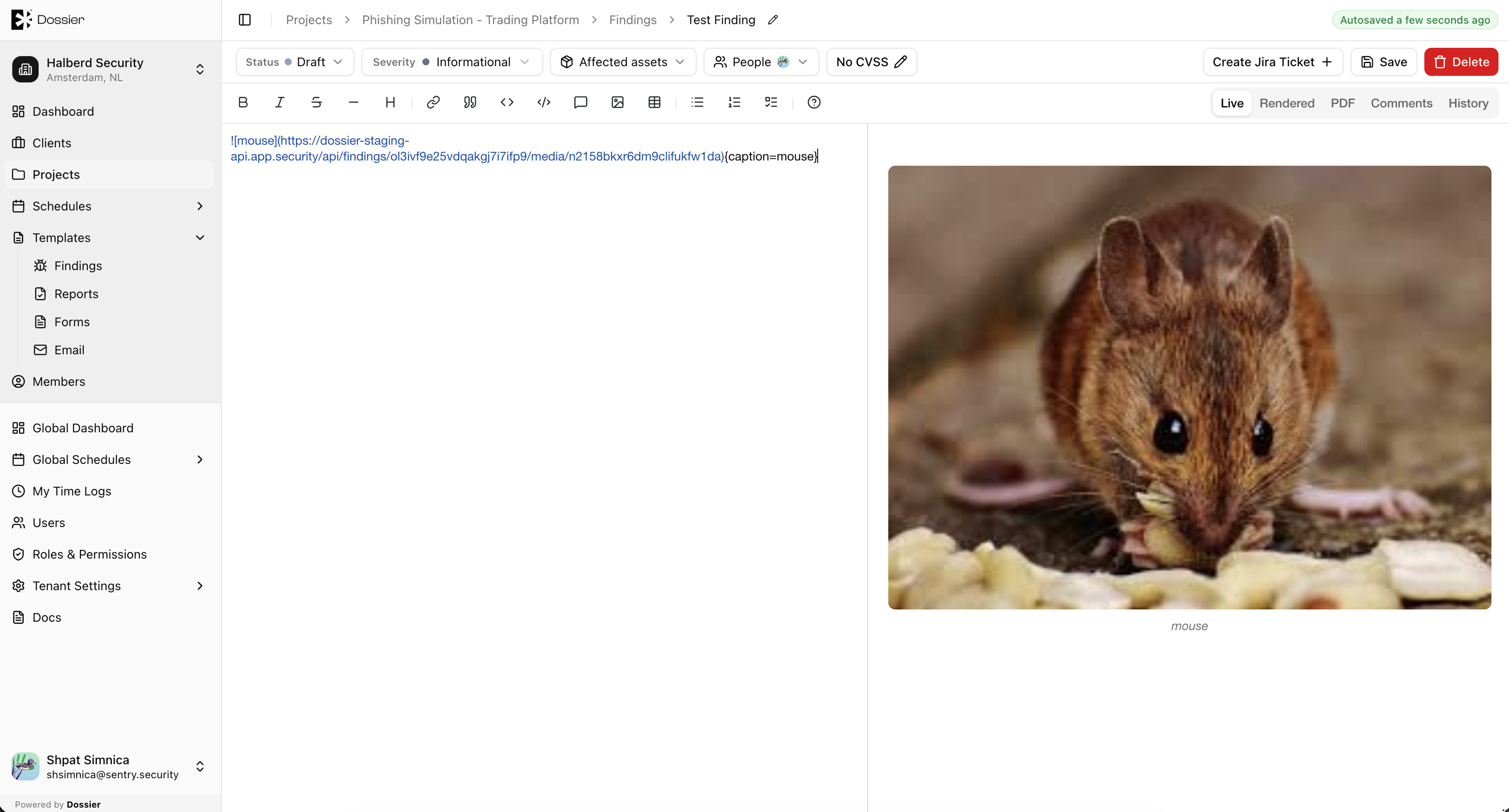
Use Insert image in the editor toolbar to upload an image. You can set alt text, caption, width, and height in the upload dialog.
The editor inserts markdown in this format:
{caption=Your caption}
| Part | Meaning |
|---|---|
![alt text] | Alt text for accessibility |
(url) | Uploaded media URL |
{caption=...} | Caption shown under the image in preview and PDF |
You can also set size and alignment in the attribute block:
{width=600 height=400 align=center caption=Request showing the injected payload}
Supported attributes: width, height, align (left, center, or right), and caption.
For a caption that is not tied to a specific image, insert a standalone figure caption:
::fig-caption(My Caption Here)
Severity and CVSS
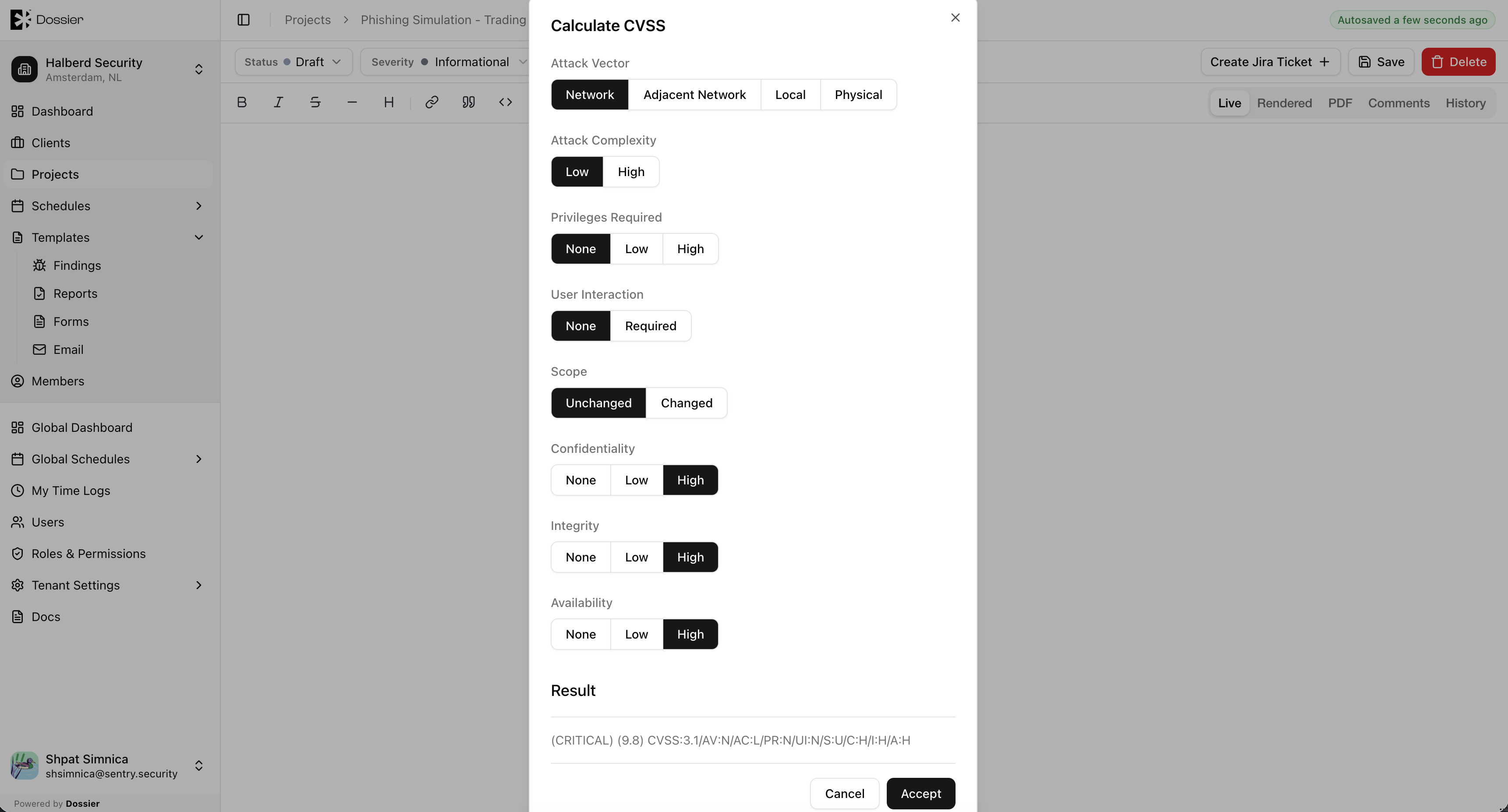
Always set an appropriate severity level and CVSS score. Use the built-in CVSS calculator to ensure consistency.
| Severity | Typical CVSS Range |
|---|---|
| Critical | 9.0 – 10.0 |
| High | 7.0 – 8.9 |
| Medium | 4.0 – 6.9 |
| Low | 0.1 – 3.9 |
| Informational | 0.0 |
Linking Assets
Link affected assets to the finding using the Linked Assets field in the finding dialog. Linked assets appear in the finding content when using Handlebars placeholders and in generated reports.
Summary
- Use Live mode while writing; switch to Rendered or PDF to review.
- Use Handlebars placeholders for dynamic project and finding data.
- Use backticks for inline code and fenced blocks for multi-line code.
- Use Insert image for screenshots; set captions with
{caption=...}or::fig-caption(...). - Set severity and CVSS for every finding.
- Link assets that are affected by the vulnerability.